Smart Office Support™ (SOS)
Turn questions, notes, files, and concerns into organized support reports and actionable recommendations.
Need Help with a Project, Document, Decision, or Problem? Submit an SOS™ Support Request and receive an organized Support Report with findings and recommendations.
Start a Free 14-Day Evaluation.
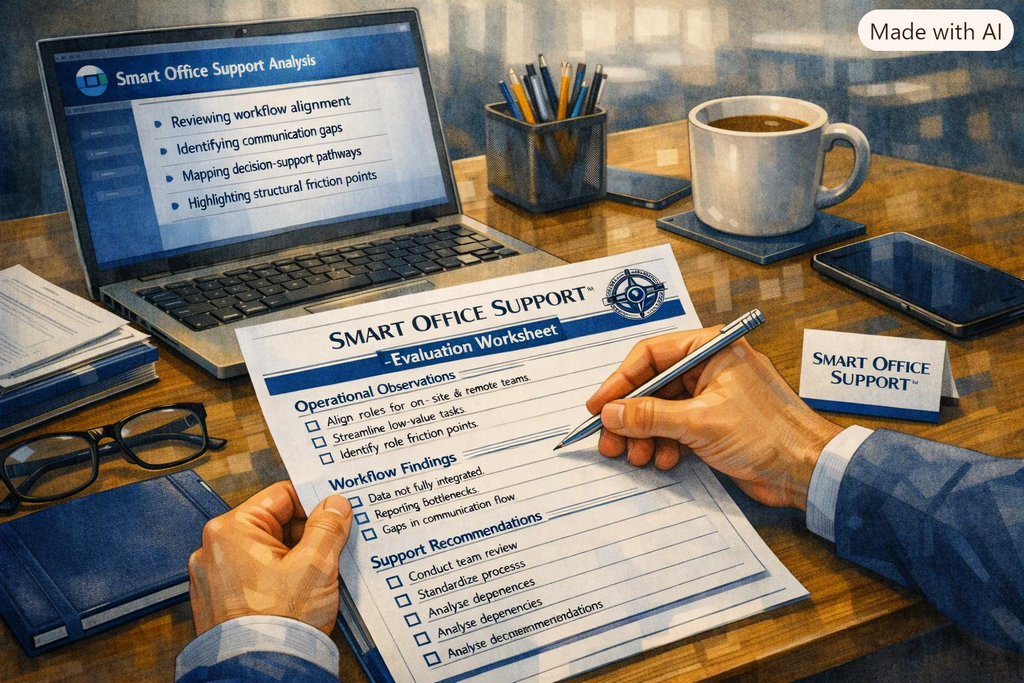
Smart Office Support™ serves any environment — human or mechanical — where precision, clarity, and guided decision support matter. From professional offices to advanced machinery, Smart Office Support™ brings structure, insight, and continuity to systems that depend on reliable performance.
How it Works
Smart Office Support™ is a structured way to get help with a question, problem, project, decision, or situation.
Start Your Free 14-Day Evaluation Download the Get Started File below and paste it into Microsoft Copilot. Your first support request will appear automatically.
✅ Submit Support Requests
✅ Receive Support Reports
✅ Discover Missing Information
✅ Identify Risks and Opportunities
How to Use Smart Office Support™
1. Start an (SOS) Support Request
Tell (SOS) what needs support and provide any available notes, documents, files, or observations.
2. Submit Your Information
Upload supporting materials and answer any worksheet questions.
3. Receive Your Support Report
(SOS) organizes the information, identifies findings, and provides recommendations to help you move forward.
FREE 14-Day Evaluation of Smart Office Support™ (SOS)
Need help with a project, document, decision, or problem? Submit an SOS™ Support Request. Smart Office Support™ reviews the information, organizes the facts, identifies gaps, and provides recommendations to help you make informed decisions.
Download the Get Started File below and paste it into Microsoft Copilot. Your first support request will appear automatically.
Evaluation Edition (Trial) = Support Report Essentials
Your Trial Evaluation Edition Smart Office Support™ (SOS) Support Report Includes
- ✅ What appears to be happening
- ✅ What information is missing
- ✅ What may require attention
- ✅ What appears to be working
- ✅ What may be slowing progress
- ✅ Risks and concerns identified
- ✅ Opportunities for improvement
- ✅ Recommended next actions
- ✅ Overall decision readiness
Licensed Edition = Full Enterprise Intelligence & Strategic Support
What You Get with Smart Office Support™ (SOS) Support Report Professional
✅ Multi-Request Trend Analysis
✅ Relationship & Dependency Mapping
✅ Cross-Department Insights
✅ Organizational Knowledge Analysis
✅ Accountability & Governance Review
✅ Risk & Leak Detection
✅ Operational Maturity Assessment
✅ Resilience & Stability Analysis
✅ Executive Decision Support
✅ Advanced Strategic Recommendations
Your Information is Secure.
System Compatibility
Smart Office Support™ (SOS) works with information from your existing systems and workflows. Organizations, schools, agencies, and businesses may provide worksheets, reports, logs, spreadsheets, exported data, and supporting documentation from platforms such as ERP systems, Student Information Systems (SIS), network monitoring tools, CRM platforms, knowledge bases, and operational data pipelines.
Administrators and authorized users can submit this information through Copilot as part of an (SOS) Support Request, allowing Smart Office Support™ to organize, review, correlate, and analyze available information to produce structured support reports, findings, and recommendations.
(SOS) is designed to complement existing systems by helping users understand what information is available, identify gaps, reveal relationships, and support informed decision-making.
Privacy Notice
Smart Office Support™ (SOS) does not retain, store, or archive submitted information. Information is processed only to generate your support report and is not used to train AI models or other systems. Microsoft services used by (SOS) are subject to Microsoft’s privacy and security policies. [learn.microsoft.com], [microsoft.com]
Content update October 2026
Protected Intellectual Property Notice
Smart Office Support™, and associated frameworks are proprietary intellectual property. Use of these materials is governed by license. Reproduction, modification, derivative development, rebranding, renaming, redistribution, or commercial use without written authorization is strictly prohibited.
Microsoft Privacy Policy (Official Link)
https://privacy.microsoft.com/en-us/privacystatement
Microsoft Partner
As a verified Microsoft Partner, Happy Pages provides Smart Office Support™ (SOS), a structured support process that helps organizations turn documents, reports, notes, spreadsheets, and operational information into clear support reports and actionable recommendations.
Microsoft partners can use (SOS) to support customers, review business operations, identify gaps, improve communication, and gain greater visibility into projects, processes, and organizational activities. The result is improved clarity, better decision-making, and more effective collaboration across teams.
Questions? Comments: Ideas:
We welcome comment, suggestions, stories, anything that will improve the work, send us an email support@happypages.site
Support Is Not a One-Time Event
The trial introduced the Smart Office Support™ process. A license allows you to continue using (SOS) to organize information, monitor progress, identify patterns, document discoveries, and support decisions across your organization.
As projects evolve and information grows, (SOS) helps maintain visibility, understanding, and continuity.
Continue with Smart Office Support™ and keep moving forward with confidence.
License Activation information is available below.